
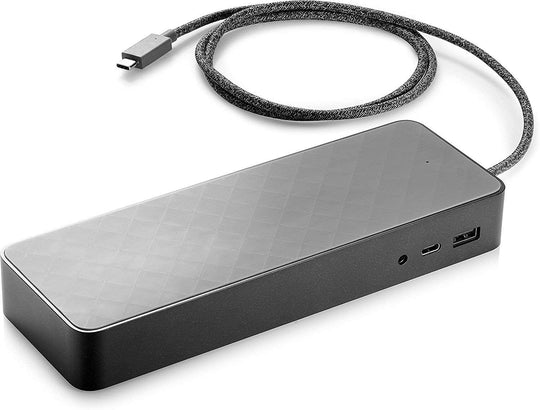
In today’s fast-paced digital world, the ability to seamlessly integrate a laptop with additional peripherals and devices is essential for enhanced productivity. Among the numerous solutions available, docking stations offer unmatched convenience and efficiency, transforming a compact laptop into a full-featured workstation. This is especially true for HP laptops, which can be effortlessly connected to a docking station, providing a bridge between mobility and extensive functionality. This guide aims to navigate through the process of connecting an HP laptop with a docking station, highlighting the advantages and simplifying the setup process.
Understanding the Benefits of Docking Stations
Docking stations provide multiple benefits, making them a valuable accessory for HP laptop users:
- Enhanced Connectivity: Gain access to multiple USB ports, HDMI, Ethernet, and more.
- Improved Ergonomics: Elevate the laptop screen to a comfortable eye level, reducing strain.
- Increased Productivity: Quickly connect and disconnect from a wide array of devices and peripherals.
- Centralized Power Management: Charge your laptop and connected devices simultaneously.
Choosing the Right Docking Station for Your HP Laptop
Selecting the ideal HP laptop docking station involves considering several key factors:
- Compatibility: Ensure that the docking station supports your specific HP laptop model.
- Port Availability: Check for necessary ports such as USB-C, HDMI, DisplayPort, and others based on your needs.
- Power Delivery: Verify the power output to ensure it can adequately charge your laptop.
- Future-Proofing: Opt for a docking station with more ports than currently needed for scalability.
Steps to Connect Your HP Laptop with a Docking Station
Initial Setup
Begin by positioning the docking station at a convenient location on your desk. Connect it to a power source using the provided adapter. Ensure the docking station is powered on before proceeding.
Connecting Your HP Laptop
Follow these simple steps to connect your HP laptop:
- Identify the appropriate port on your laptop for docking station connection. Most modern HP laptops use a USB-C or Thunderbolt 3 port.
- Plug the docking station cable into the appropriate port on your HP laptop.
- Wait for the laptop to recognize the docking station. This may take a few moments as drivers install automatically.
Connecting Peripherals
After establishing a connection between the laptop and the docking station:
- Attach peripherals such as a keyboard, mouse, external monitor, and any other devices to the docking station.
- Ensure all peripherals are functioning correctly, and adjust settings as needed on your HP laptop for optimal performance.
Troubleshooting Common Issues
Occasionally, users may encounter issues when connecting their HP laptop to a docking station. Here are some common problems and solutions:
- Docking Station Not Recognized: Ensure all cables are securely connected and restart your laptop.
- Peripheral Devices Not Functioning: Check for driver updates and ensure all devices are properly connected.
- Display Issues: Adjust display settings on your laptop or try reconnecting the monitor.
By choosing the right docking station for HP laptops, users can significantly enhance their work efficiency and maintain an organized workspace. The convenience of quickly connecting and disconnecting peripherals without the hassle of multiple cables ensures a seamless transition from a mobile to a stationary working environment.
